
Upload media the parser can actually read
Dynasty Central works best with readable CFB 26 dynasty menu screens. Use screenshots for quick imports, or upload a slow video walkthrough when you need a roster, recruiting board, schedule, supported stats, or Top 25 poll rankings pass.
- 01Upload screenshots or one video.
- 02We parse supported dynasty rows from readable menu screens.
- 03You review everything before applying it.
Screenshots
Best for quick updates from a few roster, recruiting, player detail, schedule, supported stats, or Top 25 poll rankings screens.
20 files · 50 MB each
Video
Best for a full pass through one screen family at a time. Move slowly and pause after scrolls, page changes, and new readable headers.
1 file · 5 GB
Do
- Record dynasty menus with readable tables.
- Show roster, recruiting, depth chart, player detail, schedule, supported stats, or Top 25 poll rankings screens.
- Pause briefly after scrolls, page changes, and full-screen header changes.
- Keep one screen family per video for now; upload separate files for other families.
Don't
- Upload gameplay footage when you want roster or recruiting data parsed.
- Scroll quickly past rows before the text is readable.
- Use overlays, filters, cropped captures, or off-screen phone footage.
What we can parse today
Use these screens when you expect Dynasty Central to create rows from your upload.
Screenshots
Roster or player-detail screens, recruiting boards or scouting views, team or custom schedule screens, season player stats, per-game player or team stats, and Top 25 poll rankings. Depth chart screenshots can capture the highlighted player, not full ordering.
Videos
Slow walkthroughs of roster, horizontally scrolled roster, player rating detail, recruiting board, prospect list, depth chart, schedule, season player stats, per-game player or team stats, and Top 25 poll rankings. Keep one screen family per video for now.
Transfer Portal scouting
Choose Portal scouting when uploading a slow video of another school’s roster. Enter that roster’s school, keep names and ratings readable, and review the extracted players before saving them as transfer prospects. This does not change your dynasty roster. Later imports from the same school enrich matching prospects; capitalization and extra spaces in the school name are ignored.
Supported screen examples
Click a screen to preview what the parser can read.
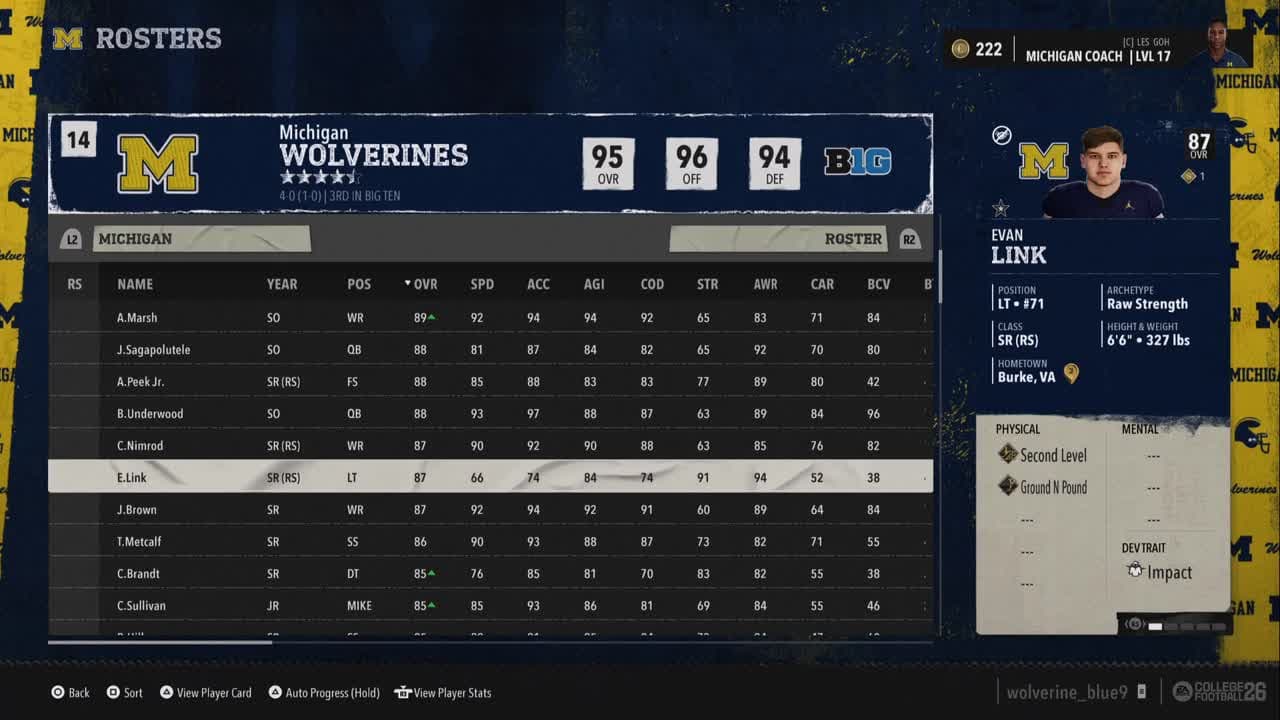
Roster
Screenshot + video- Player names, positions, class/year, and overall ratings.
- Visible rating columns from the selected roster view.
- Player card details when visible, such as archetype, size, hometown, abilities, and dev trait.
1 of 8
Not supported yet
- NCAA national-stat rankings, national leader screens, and conference standings are not automatically parsed yet; enter them manually for now.
- Other ranking screens besides the in-game Top 25 poll rankings are not an automatic media import target today.
- Gameplay, replays, cutscenes, practice footage, and broadcast-style clips do not contain importable tables.
- Top Classes, settings, loading screens, dialogs, and home-menu cards are ignored.
- My School captures are not a reliable import target yet.
- Non-CFB 26 content, Madden footage, unrelated images, and unsafe content may be rejected before parsing.
Ready to upload?
Start with a few clear screens, then review every parsed row before applying changes.
Capture the full menu
The parser needs the same information you would need if you were typing the data by hand.
- Capture full-screen CFB 26 dynasty pages.
- Keep the full-screen header, names, ratings, class or year, and column headers readable.
- Use PNG or JPEG screenshots.
- Avoid cropped, blurry, filtered, or phone-camera images.
- Upload only the screens you want parsed.
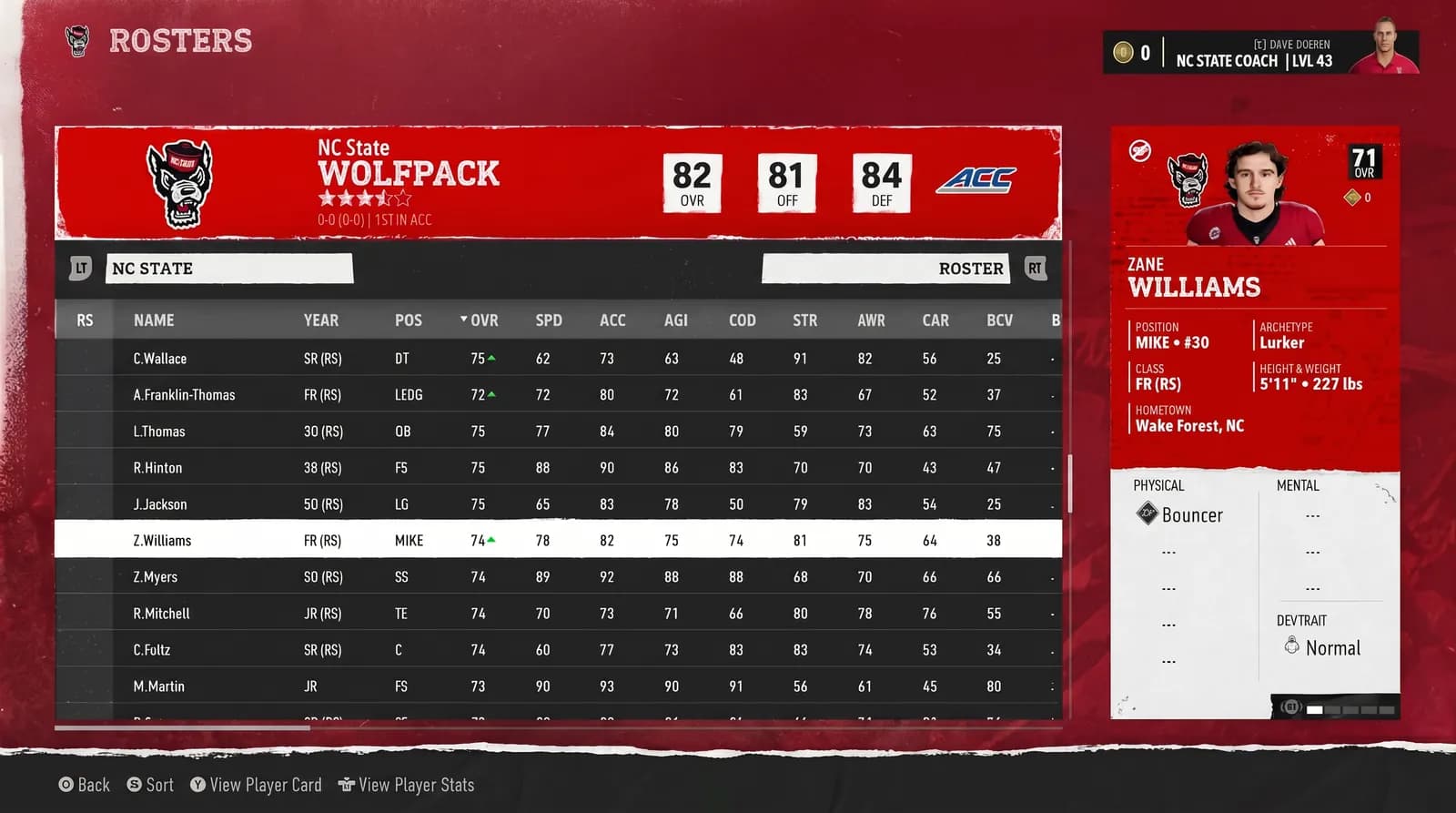
Good screenshot
Full-screen, readable, and includes the data columns Dynasty Central needs.
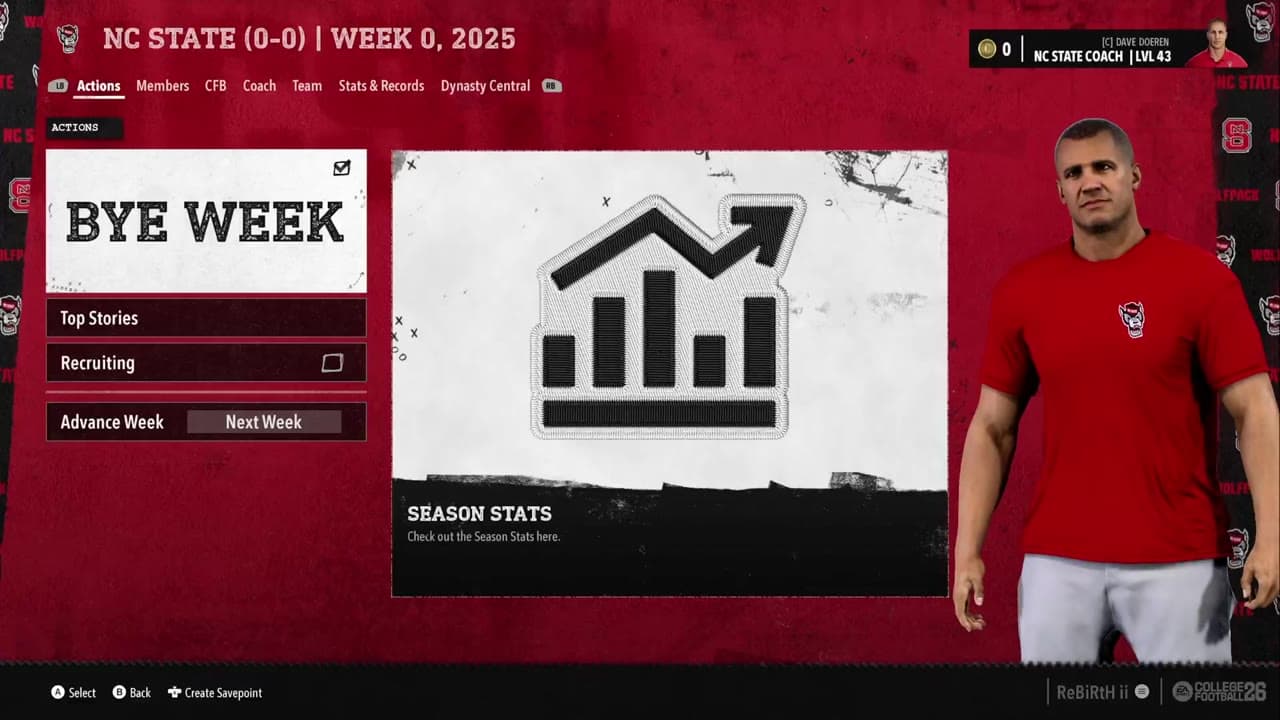
No table to read
This is a clean dynasty screen, but it does not show roster, recruiting, player detail, or schedule rows.
Common reasons parsing misses
Most failed uploads are CFB 26 content, but not the right kind of CFB 26 content for extraction.
Wrong screen
A screen can be clean and still unusable if it does not show a supported roster, recruiting, depth chart, player detail, schedule, player stats, per-game stats, or Top 25 poll rankings table.
Missing columns
Cropped or zoomed captures can hide names, years, positions, OVR, ratings, or schedule columns. Recapture the full screen.
Moving too quickly
Videos need stable frames. Pause briefly after each scroll, page change, or player selection.
Hidden names
Horizontally scrolled roster video can capture the highlighted player, but unnamed rows cannot be safely matched.
Overlays and transitions
Popups, loading animations, fade effects, notifications, and streamer overlays can block the table or cause frames to be skipped.
Hard-to-read footage
Phone recordings can work when sharp, but angled, shaky, compressed, filtered, or low-light footage lowers confidence.
Record a slow menu walkthrough
A good video is not a highlight clip. It is a steady pass through dynasty menus with readable tables.
- Record a full-screen CFB 26 dynasty session.
- Move slowly through one screen family per video for now.
- Pause briefly after each scroll, page change, or new full-screen header.
- Avoid overlays, fast scrolling, and unrelated menus.
- Upload separate videos or screenshots for other screen families.
- Use MP4 or MOV.
Menu screens
Show roster, recruiting, player detail, depth chart, or schedule screens so the parser has tables to read.
Too fast to read
Even on the right menu, moving prospect by prospect without a pause gives the parser fewer stable frames to read.
Nothing applies automatically
Treat parsing as a draft. You stay in control of what gets written to your dynasty.
Parsing takes time
Screenshots usually become review-ready quickly. Videos can take several minutes because the system extracts frames before reading the data.
Review before apply
You can edit fields, remove rows, and fix row types before confirming. Nothing changes until you apply the import.